Entertainment Magazine: Apple: iPhone: International: Tips
Avoid unexpected iPhone roaming charges
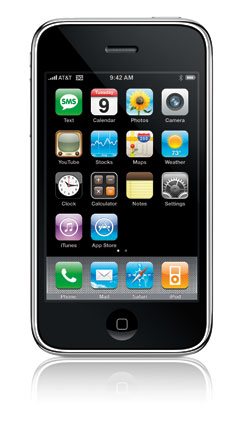 Change your iPhone General Settings
Be sure you are not charged by AT&T when you get a phone call while on the road and do not want to accept it, or if you accidently activate automatic email checking, voicemail or other wireless actions, such as stock or weather reports, YouTube or GoogleMaps.
Follow these steps before you leave the U.S. or your home country.
To just use your iPhone as an iPod (for video and music) while on an airplane, read more about using Airplane Mode.
Do all of these steps to be sure that all services are shut off:
1. Turn Airplane Mode ON
GO: Settings> Airplane Mode. Select off.
This is the best way to avoid all data and voice charges on your iPhone. You can still use your device as an iPod to play music, videos and use apps that do not require a web connection. Downloading a web page can take up several hundred KB. Data rates while in Mexico, for example, are .0195¢ each KB. A full MB would cost a whopping $19.50. That can easily be eaten up with just a few web pages. Read more about Airplane Mode.
2. Turn Fetch New Data OFF
Go: General> Settings> Fetch New Data. Select OFF
When you select Push to the OFF position, this prevents new data to be sent to your phone from the server. Apps like email, stocks and phone automatically check the server for new updates.
When you select Fetch to Manually, then apps only check services when you request. Using the fetch at every 15, 20 minutes or hourly can drain your battery.
3. Turn Network Account OFF
GO: Settings> Mail, Contacts, Calendars. Select your mail account, then on the next page turn OFF the Account option.
This prevents the iPhone from checking email from your mail server.
4. Turn Data Roaming OFF. By default, the setting is off, but check to be sure.
This prevents the iPhone from data charges outside of your network. When you open the mail app, it automatically checks for email unless this feature is turned OFF. You can always turn it on to quickly check for mail messages for to send mail or surf the web. Read more about Airplane Mode.
iPhone Travel international tips
AT&T advises customers to take several steps with their iPhone before making any calls. There are several ways to minimize these unwanted international data charges from AT&T. Read more iPhone International travel tips.
Accessories for your iPhone:
Visit iTune's App Store
Loading...
Griffin Technology
Griffin Technology Inc., is today one of the world's foremost providers of personal computing and digital media accessories. Unique products such as iTrip, PowerMate, iFM, iMic and Evolve have inspired numerous accolades and frequent imitation. Shop Griffin Technology.com and Receive Free Basic Shipping on All Orders!
Woogie: The Huggable Case and Media Player for iPod touch and iPhone.
MacMall ships Apple
© 2008-2013 Entertainment Magazine. EMOL.org All rights reserved.